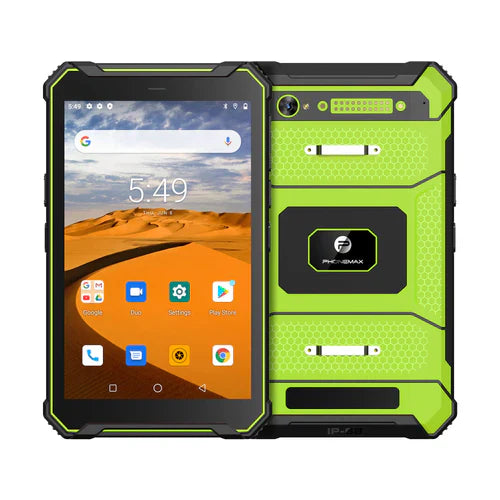
If an operator needs a drawing and a work form side by side, evaluate that pair in the available window arrangement on the supplied tablet. A large screen or Android version alone does not prove that both applications remain usable together.
Use a real two-app exercise
- Open the approved drawing and the actual form with sample job data. Check whether the supplied build and applications offer the required window mode.
- Resize the windows where supported. Read the smallest relevant drawing label, open a form dropdown and display the keyboard.
- Enter a value, consult the drawing, return and save. Verify that focus changes do not discard the entry or hide the confirmation.
- Return to full screen and reopen the saved record. Compare the saved value with the original instruction.
Record the failure, not just “multitasking failed”
| Observation | Useful follow-up |
|---|---|
| Second app cannot share the screen | Ask its vendor about supported window modes |
| Keyboard covers the submit control | Review layout at the actual window size |
| Unsaved value disappears on switching | Define a safe save sequence and report the app behavior |
Android's multi-window guidance describes platform and application considerations. It does not certify a particular pair of work apps.
The T1 is currently listed with Gray 6GB/128GB/Android 16 and Green 8GB/128GB/Android 10 configurations. Keep the chosen version in the test record. This is a proposed acceptance exercise; no two-app performance measurement is reported here.
For the document portion, see the document handoff guide. Send Phonemax the two app names and the required screen arrangement before a team order.


Commenta
Nota che i commenti devono essere approvati prima di essere pubblicati.
Questo sito è protetto da hCaptcha e applica le Norme sulla privacy e i Termini di servizio di hCaptcha.