
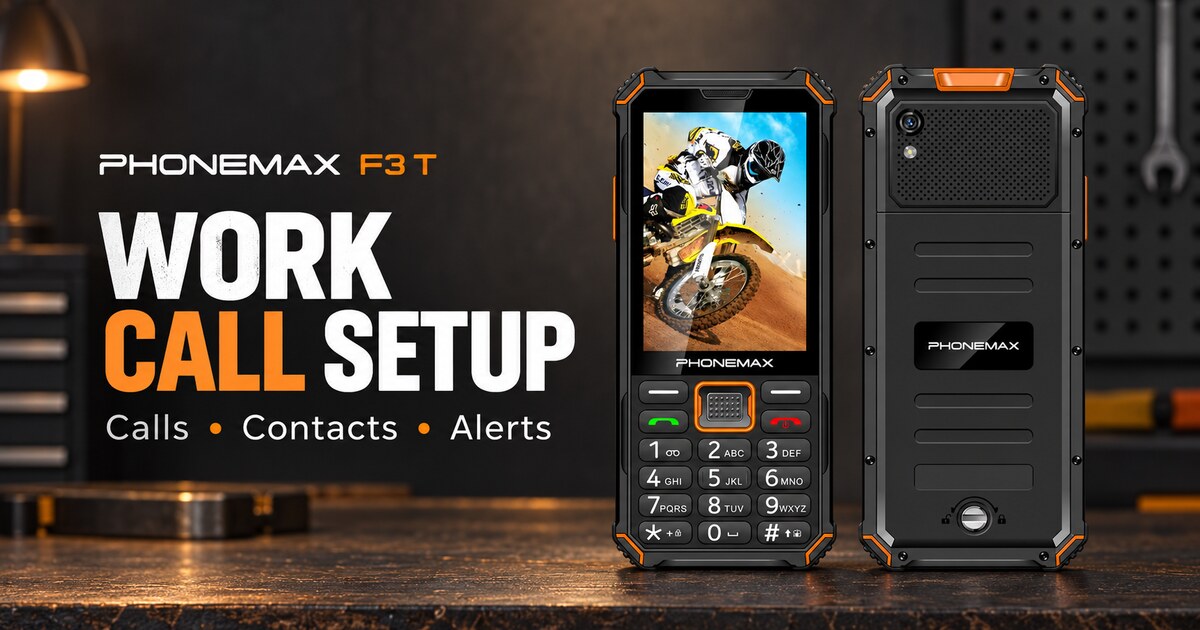
To set up the Phonemax F3 T for work calls, confirm the working SIM, set ring and call volume separately, save essential contacts, check notification interruptions, and complete an incoming and outgoing call test with the screen locked. Finish by recording the settings and charging plan so the next user can repeat the same setup.
This guide is for someone configuring an F3 T already in hand. If you are still choosing a device, start with our F3 T task-based buying guide.
What you need before starting
- The F3 T, its compatible charger and the SIM you will use at work.
- A second phone and a colleague who has agreed to receive test calls.
- The correct numbers for dispatch, the supervisor and the normal backup contact.
- Your employer's requirements for screen locking, accounts and permitted apps, if applicable.
The current F3 T product page describes an Android phone with a touchscreen and physical keypad, a 2500mAh battery and a 3W speaker. Its approximate 120dB figure is a manufacturer test-condition claim, not a prediction of audibility in a particular workplace.

1. Confirm that the intended number can make and receive calls
With the SIM installed according to the supplied instructions, check the displayed network and place a normal call to the colleague. Ask them to call back. If using two SIMs, inspect the SIM preferences and confirm which line is selected for outgoing calls; labels vary by firmware. Record both the selected line and the number colleagues should call.
Do this before adjusting audio. A network-registration problem cannot be fixed by increasing the ringtone. If calls fail, confirm account activation and device acceptance with the carrier. Do not use an emergency number for routine testing.
2. Set ringtone and call volume separately
Open Settings and look for Sound or Sound & vibration. Choose a recognizable ringtone and adjust its ring volume. During the agreed test call, adjust the listening volume to a comfortable level. Media volume alone does not determine how loudly an incoming call rings.
Google's Android sound guide explains the separate volume controls and notes version differences. Treat these as general Android directions: the exact F3 T menu names and available controls depend on its software. If a setting is absent, consult the supplied guide or Phonemax support rather than installing a volume-boosting app to compensate.
3. Make essential contacts easy to find
Open the installed contacts app and save numbers with clear labels such as “Dispatch — Main” and “Supervisor — Backup.” Call each saved contact once to check the number. Keep the list short enough that a relief worker can find the correct person.
If the installed dialer offers favourites or speed dial, assign the most-used contacts and test the shortcuts. A physical keypad does not by itself confirm that a particular long-press shortcut is supported. Record the method that actually works on your unit.
4. Check vibration, silent modes and app interruptions
Enable call vibration if available and useful for the user. Review silent or Do Not Disturb settings so an intended work call is not suppressed. Disable unnecessary promotional notifications through the relevant app settings while retaining work messages and required system alerts.
Lock the screen, carry the phone in its usual pocket and have the colleague call again. Repeat in an ordinary work location where testing is permitted. Keep required hearing protection in place and avoid bringing a loud speaker close to an ear. If an alert cannot be noticed reliably, change the communication procedure or equipment rather than relying on maximum volume.
5. Save a short setup record
| Check | Record before issuing the phone |
|---|---|
| SIM and number | Outgoing line: ____; number to call: ____ |
| Incoming and outgoing calls | Location: ____; both directions completed: ____ |
| Locked-screen alert | Carry position: ____; ring/vibration noticed: ____ |
| Contacts | Primary and backup numbers verified: ____ |
| Shortcut, if supported | Exact working key or menu action: ____ |
| Charging | Charger location: ____; responsible person: ____ |
| Software and retest | Version: ____; check date: ____; next check: ____ |
Run the real call and messaging workload before relying on a full shift of battery life. Record start and finish percentages and any charging interval. The 2500mAh capacity is not a published guarantee of operating hours. Repeat the essential checks after a SIM change, reset or software update.
If something fails
| Symptom | First checks |
|---|---|
| Phone does not ring | Confirm caller used the correct number, then check network service, ring level and silent modes. |
| It rings but speech is hard to hear | Adjust call volume during a call; check whether audio is routed to an accessory; compare another location. |
| Saved shortcut calls the wrong person | Correct the contact and assignment, then place a fresh test call. |
| Work messaging is delayed | Check the app's connection and notification settings; test calls separately from app messages. |
| Battery does not cover the shift | Review recorded workload and charging opportunities; avoid assuming a larger speaker rating predicts endurance. |
FAQ
Does changing media volume also set the ringtone? Not necessarily. Android separates several audio controls. Check the ring setting and verify with an incoming call.
Can every F3 T key be used for speed dial? Do not assume so. Use only the shortcuts exposed by the installed dialer and test each assignment.
Is the F3 T a substitute for a workplace alarm or radio? This setup establishes ordinary phone calling. It does not validate a regulated safety-communication system.
Should I choose F3 T or F4 T? Compare the actual controls and requirements using our physical-keypad work-phone guide. Verify each model's own specifications; they are not interchangeable.
Sources and publisher disclosure
Phonemax publishes this guide and sells the F3 T. Hardware facts come from the current F3 T listing, checked 7 September 2026. Google Android Help supplies general sound-setting guidance; it did not test or endorse this model. The checklist is a proposed setup procedure, not a reported customer trial. The hero uses official product imagery in an illustrative composition.

اترك تعليقًا
تخضع جميع التعليقات للإشراف قبل نشرها.
This site is protected by hCaptcha and the hCaptcha Privacy Policy and Terms of Service apply.