
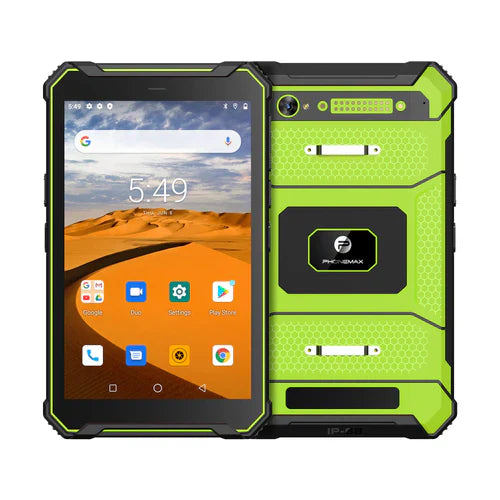
If a work form captures a drawn signature, evaluate the saved and exported result rather than the drawing screen alone. The operator should be able to complete the intended record without losing the mark or associating it with the wrong job.
Use a disposable sample form
- Open a clearly identified test job using the selected screen and input arrangement.
- Draw a harmless test mark, use the app's approved clear/retry controls and save it.
- Reopen the record and compare the job ID, mark placement and any accompanying text.
- Export through the intended workflow and inspect the final document on the receiving system.
| Finding | Question for the app owner |
|---|---|
| Mark is cropped in export | Does the export preserve the full capture area? |
| Old mark remains after correction | Which version is the approved final record? |
| Form rotates or resizes | Is capture and saving still usable at that layout? |
Record the app, device build, input method and settings. Screen diagonal alone does not establish precision, stylus compatibility or form usability. Ask the relevant organizational owner separately about identity, consent, record retention and any legal requirements; a drawing test does not establish legal validity.
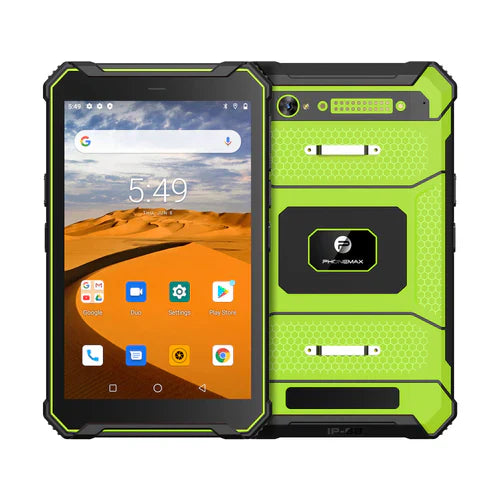
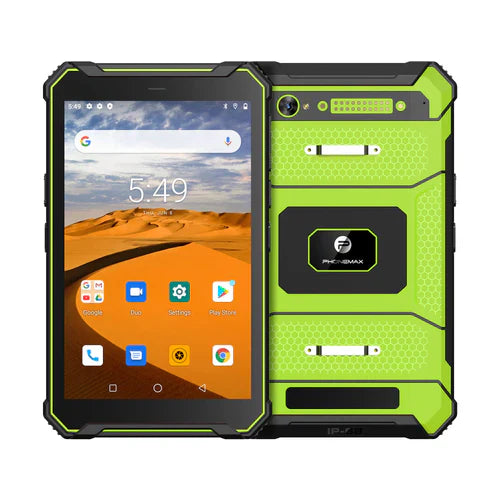
The T1 page describes an industrial tablet with distinct Gray and Green builds. It does not verify your signature application or input accessory. No signature-form or stylus trial is reported here.
Use the enlarged-text form check as a separate layout exercise. Send Phonemax the form and input requirements.

השארת תגובה
כל התגובות מבוקרות לפני פרסומן.
This site is protected by hCaptcha and the hCaptcha Privacy Policy and Terms of Service apply.