
For remote video support, evaluate what the remote participant can see and hear during the actual task. A large local display does not establish that the transmitted view shows the detail needed to give useful instructions.
Plan a representative support session
| Session step | What to observe |
|---|---|
| Join | Account, invitation and permission steps |
| Show the subject | Framing and readable detail in the remote view |
| Change camera | Whether the proposed app exposes the required view |
| Hear instructions | Audio clarity in the intended arrangement |
| Resume after interruption | Rejoining and returning to the subject |
Do not infer app behaviour from camera hardware
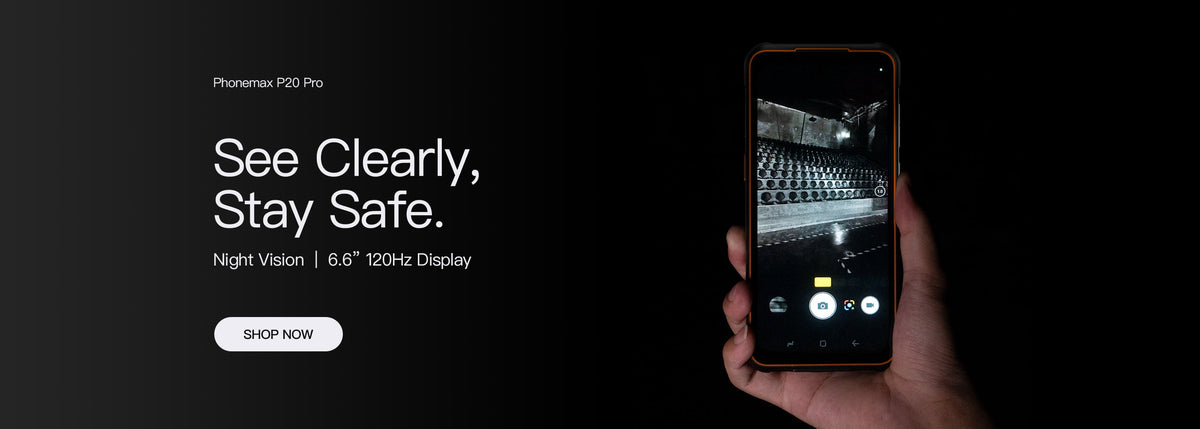
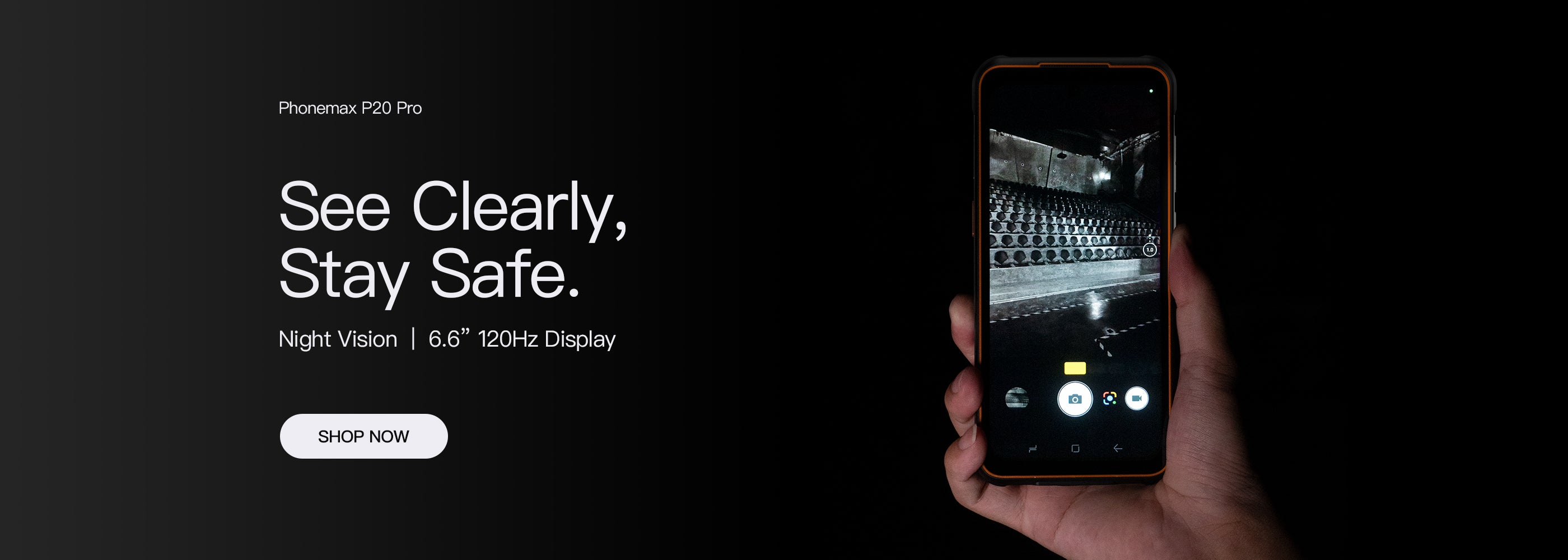
The current R4-T specification lists a 64MP autofocus main camera, 20MP night-vision camera and 13MP fixed-focus front camera. This does not establish which cameras a particular video app can access or the quality of its transmitted image.
Use a non-sensitive example and ask the remote participant to identify the required detail. A clear preview on the handset alone is not the acceptance result.
Keep the setup in the record
Record the app version, connection, camera selection and any headset or mount. Include a normal support instruction and verify that the user can follow it without losing the useful view.
If still images are part of the process, use the photo-report checklist for final delivery.
Discuss the proposed workflow with Phonemax. No video-service compatibility, network quality or current 6.5-inch configuration is established here.

Legg igjen en kommentar
Alle kommentarer modereres før de publiseres.
This site is protected by hCaptcha and the hCaptcha Privacy Policy and Terms of Service apply.